Approve your iPhone on your Sovereign brain
Confirm the device link on your brain so only your iPhone can connect.
Updated July 13, 20261 min read
The first time you link, your Sovereign brain asks for your OK. This stops strangers on your Wi‑Fi from connecting.
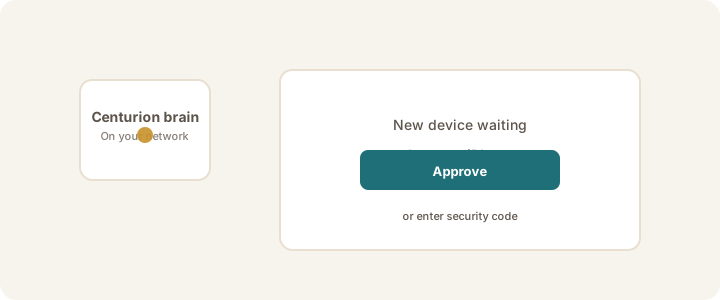
What you'll see on iPhone
- Approve on your Sovereign — linking paused until you approve
What to do on the brain
- Open your Sovereign's device approval screen (provided with your appliance).
- Approve the iPhone shown, or enter the security code from iPhone: You → Security Code → Show
- Then on iPhone tap Try Again.
Note
You only need to approve each iPhone once. If you reset your iPhone's identity, you'll need to approve again — see Reset iPhone identity.
If linking is waiting, see Waiting for approval.
Was this article helpful?