Find and link your Sovereign
Connect Sovereign Remote on your iPhone to your Sovereign brain — Tailscale first, Wi‑Fi as fallback.
Before linking, install and license Brain — Download and install and Activate your license. Linking your iPhone is the step that brings Crypto Chat together. Once linked, Crypto Chat stays between you and your Sovereign on your private mesh.
Preferred: Tailscale
- Install Tailscale on your Sovereign and on your iPhone, then sign both into the same tailnet
- On the Sovereign desktop Home card, copy the Tailscale (preferred) address (MagicDNS or Tailscale IP)
- On iPhone: You → Your link → Find my Sovereign → Enter address manually
- Paste the address, tap Connect, and keep the screen open
- If asked, approve this iPhone on the brain — see Approve your iPhone. That uses a pairing security code, not your license activation code.
- When linked, the card shows Linked · Tailscale
After the first successful Tailscale link, Reconnect prefers that address automatically — at home and away.
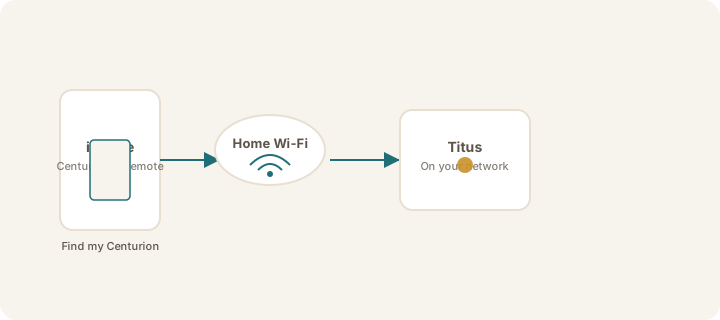
Fallback: same Wi‑Fi
- On iPhone: You → Your link → Find my Sovereign
- Wait a few seconds — your Sovereign should appear on the local network
- Tap it — you'll see Linking… Keep the screen open
- Approve if asked, then look for Linked · Wi‑Fi
Wi‑Fi linking works when Tailscale is unavailable. For a steadier link (especially when you leave home), turn on Tailscale and reconnect — see Stay linked with Tailscale.
Requirements
- Brain installed and running (software or appliance) with Remote service on port 9119
- For Tailscale: Tailscale on both devices, TCP 9119 allowed on the Tailscale interface
- For Wi‑Fi fallback: same Wi‑Fi, plus Local Network enabled for Sovereign Remote (iPhone Settings → app → Local Network → On)
Note
Reconnect always tries Tailscale first, then Wi‑Fi. You do not need a new address every time you leave home if MagicDNS was saved.
Warning
If you see "Connection timed out," check Tailscale first, then same Wi‑Fi. See Connection timed out.
Was this article helpful?