Fixing blocked web research when your Sovereign can't reach websites
How to resolve IP blocking that stops your Sovereign from searching the web, scraping pages, and extracting data — using the Firecrawl Cloud API.
If your Sovereign is having trouble performing web searches, scraping pages, or extracting data from websites, it may be because your Sovereign brain's public IP address has been flagged by anti-bot systems. This tends to happen on appliances that do a high volume of web research. This article explains how to recognize the problem and get research working again.
Symptoms
You may be running into this issue if you notice several of the following at once:
- Search engines such as Google and Bing return no results or are blocked
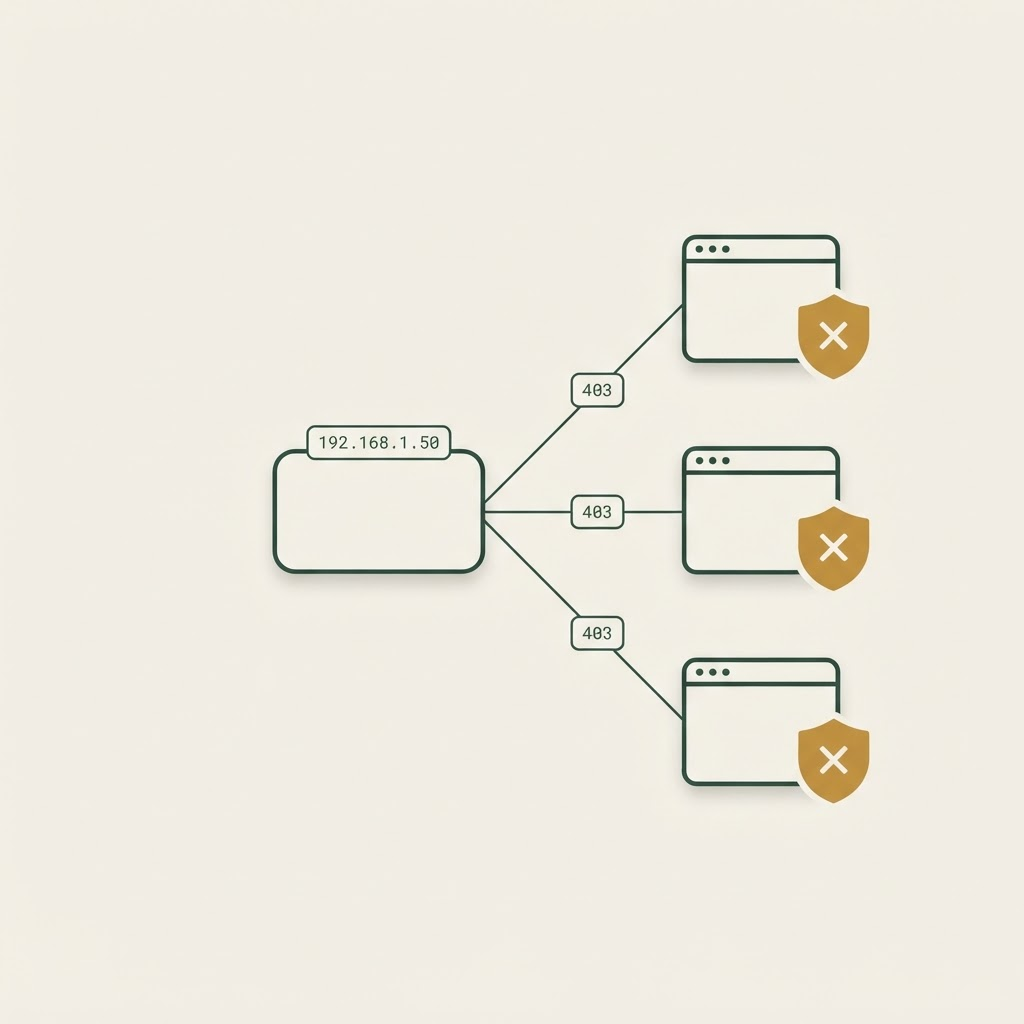
- Sites like SEC EDGAR return 403 errors
- LinkedIn, Cloudflare-protected sites, and many company websites won't load
- Brave Search returns corrupted or unusable results
- Most web extraction attempts fail
Note
Some direct website connections may still work occasionally, but your Sovereign's overall research capability will be noticeably reduced.
What causes it
This happens when your Sovereign brain's outbound IP address gets flagged by security systems as suspicious or bot-related traffic. Once an IP is flagged, many major websites and services begin blocking or restricting access from it — regardless of what your Sovereign is actually trying to do.
Resolution: use the Firecrawl Cloud API
If your Sovereign is affected by IP blocking, the most effective immediate fix is to have it use the Firecrawl Cloud API for research instead of relying on the direct browser or search tools. Firecrawl handles the connection from its own infrastructure, so the flagged IP is no longer in the way.
Step 1: Create a Firecrawl account
- Visit firecrawl.dev.
- Sign up for an account — a free tier is available.
- Verify your email address.
Step 2: Generate your API key
- Log into the Firecrawl dashboard.
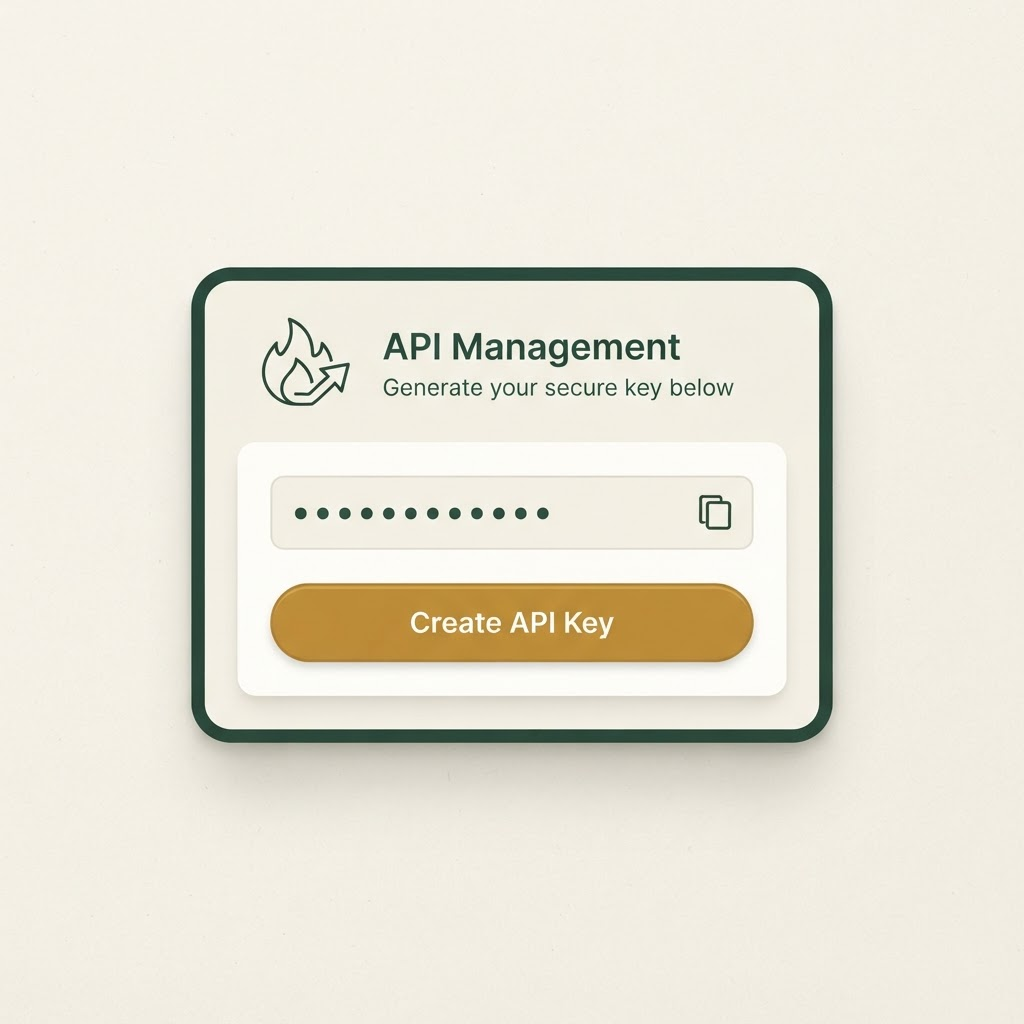
- Go to API Keys (usually found under Settings).
- Click Create API Key.
- Copy the key immediately — it's only shown once.
Warning
Treat your API key like a password. Don't paste it into shared documents or public chats, and generate a new one if you think it has been exposed.
Step 3: Add the key on your Sovereign brain
Start a conversation with your Sovereign and give it an instruction like this, or add the key through your brain's admin screen if one is provided:
From now on, use the Firecrawl Cloud API for all web research and scraping tasks.
Use this API key: [INSERT YOUR API KEY HERE]
Please switch to Firecrawl's scrape_url or crawl_url functions instead of the
direct browser tools or search engines.
Step 4: Test it
Ask your Sovereign to run a test scrape on a site that was previously blocked — an investor relations page or an SEC filing works well — and confirm it can now return clean, usable data.
Verifying it worked
Once configured, your Sovereign should be able to complete research tasks that were previously blocked, including pulling contact information and browsing protected websites. If a task still fails, ask your Sovereign to retry it explicitly through Firecrawl, since it may still be defaulting to the direct tools.
Alternative solutions
Firecrawl is the fastest fix, but a few other approaches can help depending on your situation.
| Solution | Best used when | Notes |
|---|---|---|
| Residential proxy service | High research volume | Requires additional setup |
| Self-hosted Firecrawl | You prefer full control | More complex to maintain |
| Multiple Sovereign brains | Running several Centurions | Helps distribute research load |
Recommendations
- Use Firecrawl as the primary web tool for any Sovereign that regularly performs research.
- Keep an eye on research success rates, and revisit this article if the blocking symptoms come back.
- For research-heavy instances, consider dedicated exit nodes or proxies over time.
Tip
If web research only fails occasionally, it may be a temporary network issue rather than IP blocking. Check Connection timed out first before setting up Firecrawl.
Was this article helpful?